How to Install a Sharp Copier Driver on Windows 10 or 11
A complete walkthrough for downloading and installing the printer driver for your Sharp MFP
Adding a Sharp copier to a Windows PC isn't much harder than installing any other printer, but the official Sharp download page does ask a few questions along the way and the installer has a handful of screens where the right choice isn't obvious. Here's the path that works on Windows 10 and Windows 11.
Step 1: Pick your printer driver on Sharp's website
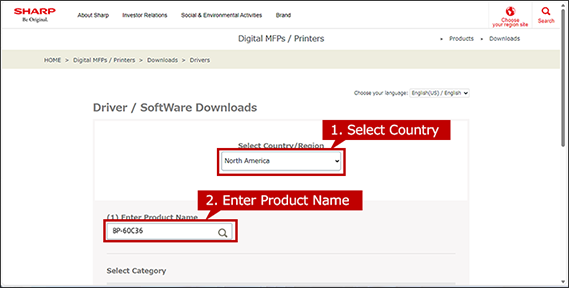
Head to Sharp's Driver/Software Downloads page, choose yourCountry/Region, and enter theProduct Name(the model number, like BP-60C36, MX-5050N, etc.) in the search field.
Pick your region and type in your copier's model number.
Step 2: Pick a driver language
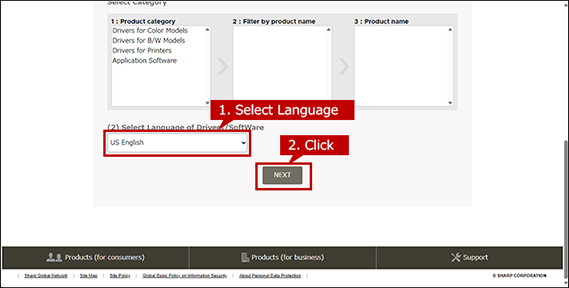
Select your language (US English for most North American users) and clickNEXT.
US English is the right choice for most North American users.
Step 3: Let the page detect your operating system
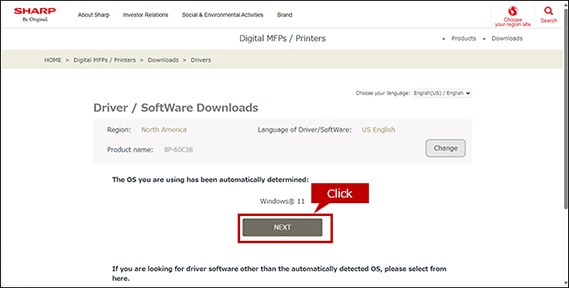
Sharp's page will try to detect your OS automatically (Windows 10, Windows 11, or whatever you're running) and show it on the next screen. If it's right, clickNEXT.
Sharp's page detects your OS automatically — usually correctly.
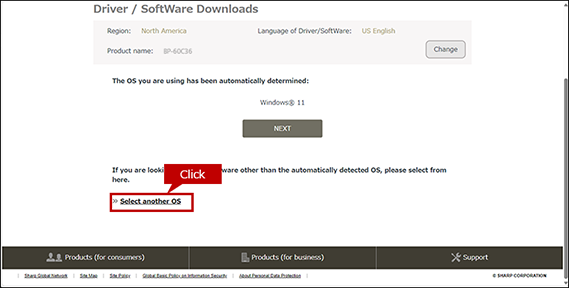
If the detected OS isn't right (for example, you're downloading the driver from a different machine than the one you're installing on), clickSelect another OSand pick the correct one from the dropdown.
Click Select another OS if you need to pick a different Windows version.
Step 4: Download and run the installer
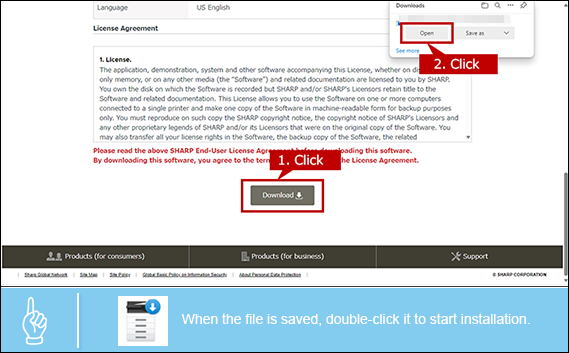
Click theDownloadbutton. Most browsers will ask whether you want to open or save the file — if you save it, just double-click it once the download finishes. When Windows asks for admin permission, clickYes.
Click Download, then Open the file once it lands. Admin permission is required.
Step 5: Confirm the install location
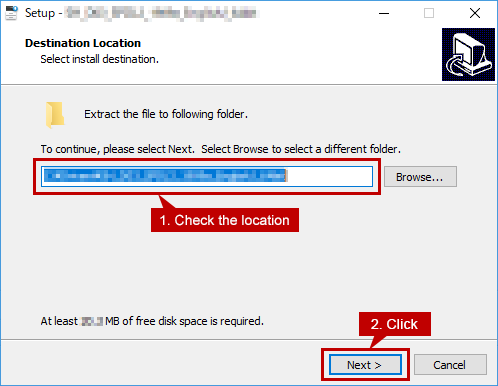
The installer asks where to extract its files. You can leave the default location alone and clickNext.
The default extraction location is fine — just click Next.
Step 6: Choose Advanced installation
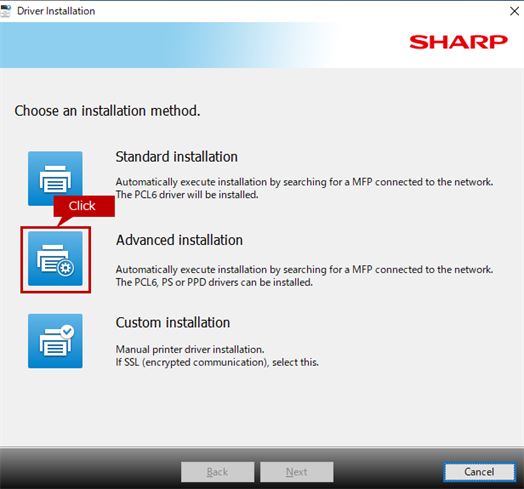
On the installation method screen, clickAdvanced installation. This gives you the ability to choose PCL6, PS, or PPD drivers (rather than just a single default), which is usually what you want.
Advanced installation gives you more control over which drivers get installed.
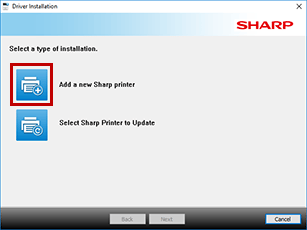
If you see "Select a type of installation" first:this screen only appears if you've installed a Sharp driver on this PC before. ClickAdd a new Sharp printerto continue.
Choose "Add a new Sharp printer" if this screen appears.
Step 7: Pick the copier on your network
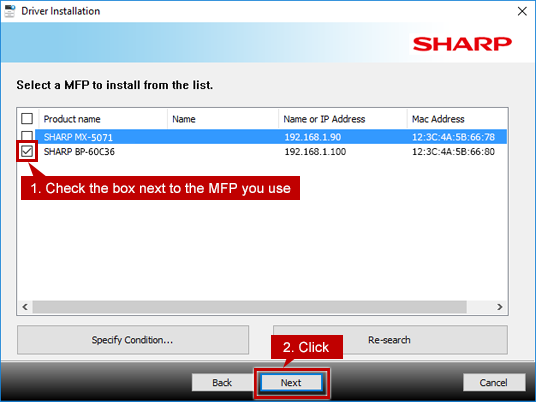
The installer searches your network for Sharp copiers and shows them in a list. Check the box next to the one you want to install and clickNext.
Check the box for the copier you want, then click Next.
Don't see your copier in the list?Check that the copier is powered on and connected to the same network as your PC. If it still doesn't appear, clickSpecify ConditionsorRe-search. As a last resort, you can manually enter the copier's IP address.
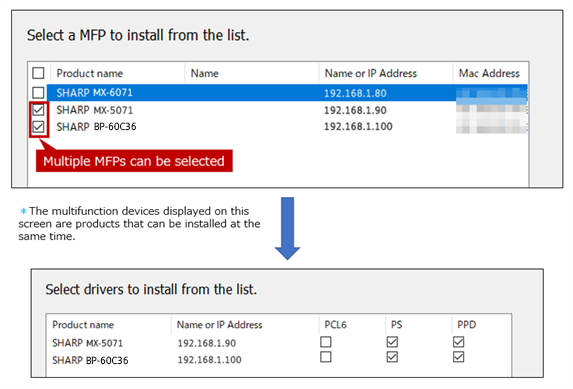
If you have multiple Sharp copiers on the same network, you can install them all at once by checking more than one box.
You can install drivers for multiple copiers in one go.
Step 8: Pick which driver flavor to install
Sharp offers three driver types —PCL6,PS, andPPD. Most office users only need PCL6 (it's the default for general printing). PS is useful if you do a lot of graphics or PDF work, and PPD is for compatibility with certain niche applications. Check the boxes for the ones you want and clickNext.
Pick the driver flavor — PCL6 for general use, PS for graphics work.
Step 9: Confirm and start the install
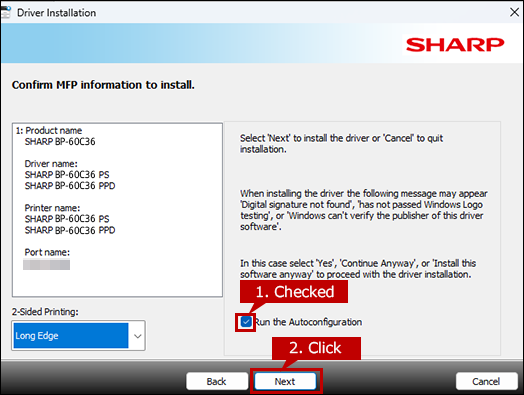
Review the summary screen showing what's about to install. Leave theRun the Autoconfigurationcheckbox checked — this lets the driver auto-detect the copier's installed options like trays and finishers, which saves you from configuring them manually. ClickNextto start copying files.
Leave Run the Autoconfiguration checked — it saves you manual setup later.
If a Windows security warning appears:the Sharp driver is safe to install, so click whatever button continues the installation (Yes, Continue Anyway, or Install this software anyway depending on the Windows version).
Step 10: Print a test page
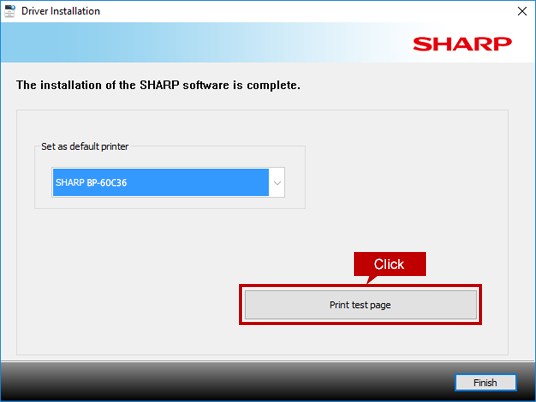
Once the installation completes, clickPrint test pageto confirm everything is working. A page should print on the Sharp within a few seconds.
Click Print test page to verify the install worked.
Step 11: Set your default printer (or don't)
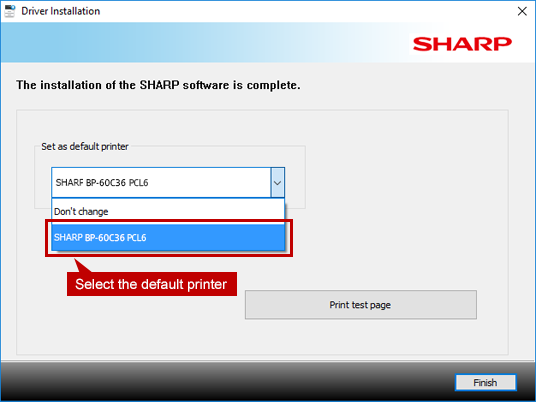
If you want this Sharp to be your default printer for everything, select it from theSet as default printerdropdown. If you'd rather leave your current default alone, pickDon't change.
Choose whether to make this Sharp your new default printer.
Step 12: Finish
ClickFinish. If Windows asks you to restart, do it — the new driver will be fully active after the reboot.
Click Finish and restart if Windows asks you to.
You're done
The Sharp is now installed and ready to print. If you ever need to change settings like paper trays or finisher options later, you can right-click the printer in Windows' Printers & scanners list, choosePrinter properties, and use theConfigurationtab.