How to Set Up Scan to Network Folder on a Sharpmark Copier
A walkthrough for configuring Scan Center, network folders, and one-tap shortcuts on the Sharp MX-C407F and similar models
If everyone in your office is already saving documents to a shared network drive, getting the copier to drop scans directly into that drive — instead of emailing them or pulling them off a USB stick — is one of the highest-leverage things you can set up. Here's how to do it on a Sharpmark copier like the MX-C407F running Windows 10 networking.
Step 1: Open the copier's web interface and go to Apps
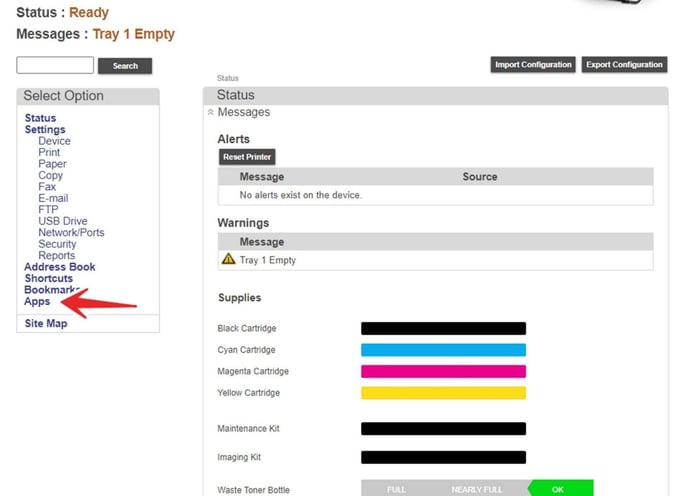
Type the copier's IP address into your web browser. Once the home page loads, look on the left menu and clickApps.
The Apps menu lives on the left side of the web interface.
Step 2: Configure Scan Center — Network Folders
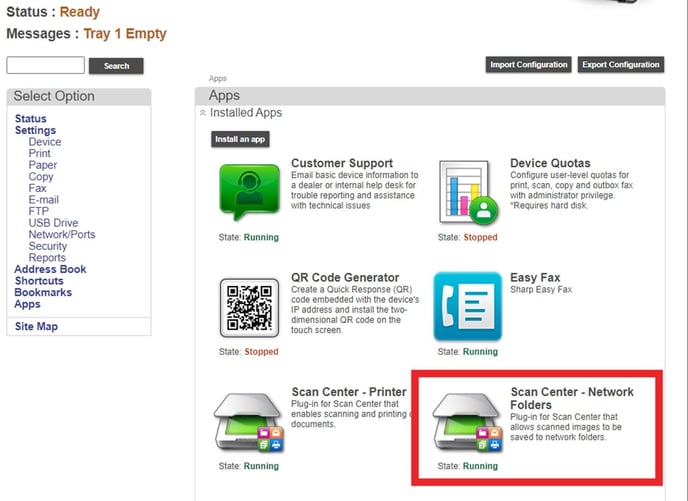
You'll see a list of installed apps. FindScan Center - Network Folders(the icon labeled "Plug-in for Scan Center that allows scanned images to be saved to network folders") and click it.
Look for Scan Center - Network Folders in the installed apps list.
Step 3: Click Configure
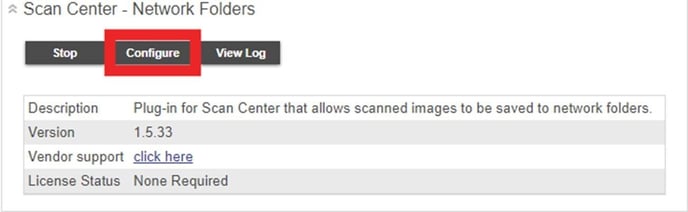
On the Scan Center - Network Folders page, clickConfigureto open the configuration in a new tab.
Click Configure — it opens settings in a new tab.
Step 4: Create a Network Folder
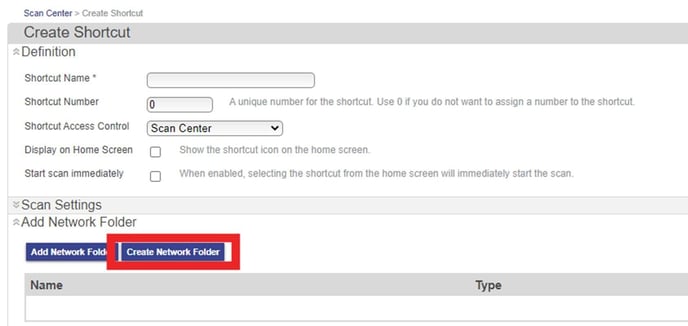
In the configuration tab, clickCreate Network Folder.
The Create Network Folder button is what you want, not Add Network Folder.
Step 5: Fill in the folder details
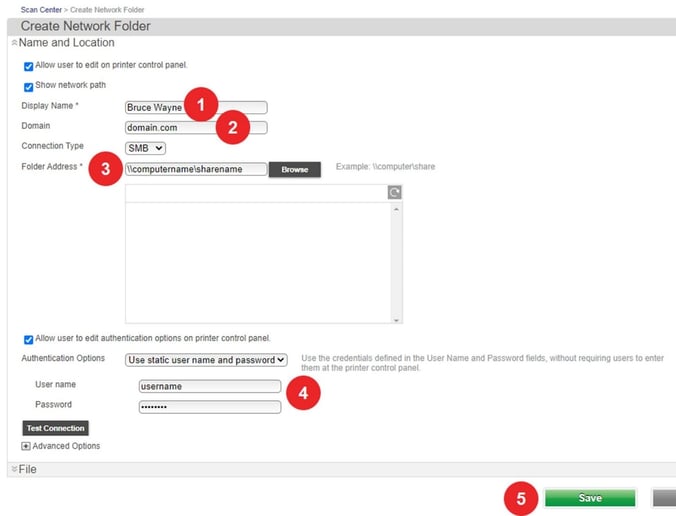
Here's what to enter on the Create Network Folder form. The red numbers in the screenshot below match these:
Display Name: a name everyone will recognize (a person's name like "Bruce Wayne," a department name like "Accounting," or something like "Shared Scans")
Domain: your domain name (for example,domain.com)
Folder Address: the network path in\computername\sharenameformat (you can also clickBrowseto navigate to it)
User name and Password: change the Authentication Options dropdown toUse static user name and password, then enter credentials for an account that has access to the shared folder
ClickSave
Five numbered steps for filling in the Create Network Folder form.
Quick tip on credentials:the account you use needs read and write access to the shared folder. Test it by opening the folder from a regular PC using those credentials before saving — that way you know the issue (if there is one) isn't the copier.
Step 6: Create a Shortcut
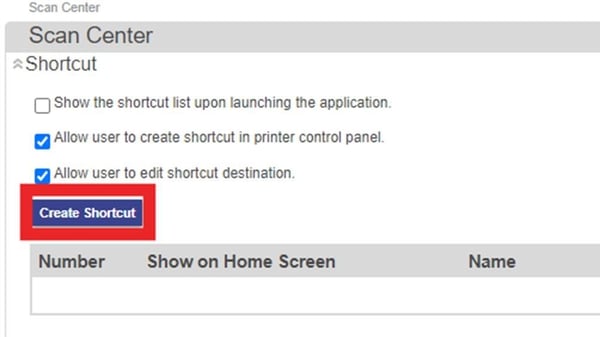
Back on the Scan Center page, clickCreate Shortcut.
Create Shortcut is what makes this folder appear on the touchscreen.
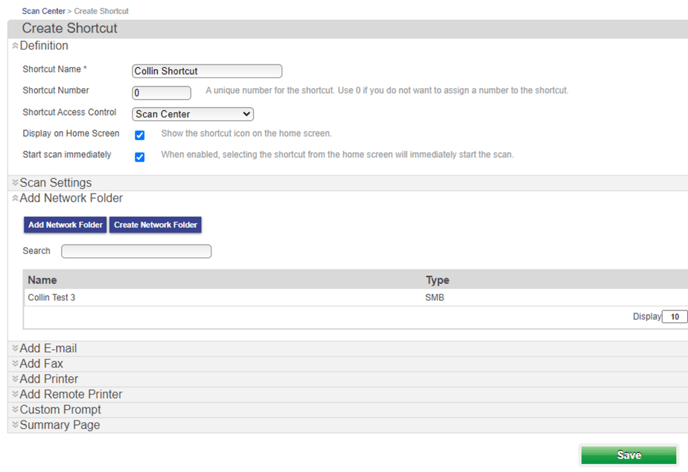
Step 7: Configure the shortcut
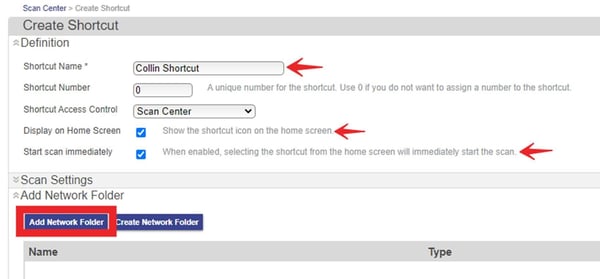
On the Create Shortcut page:
Shortcut Name: use the same name as the Display Name from Step 5 (so it's obvious to users which folder they're scanning to)
Display on Home Screen: check this box so the shortcut appears on the home screen
Start scan immediately: check this box so a single tap on the touchscreen kicks off the scan instead of stopping at a settings page
Then clickAdd Network Folder.
Match the Shortcut Name to the folder Display Name, then click Add Network Folder.
Step 8: Pick the network folder you just created
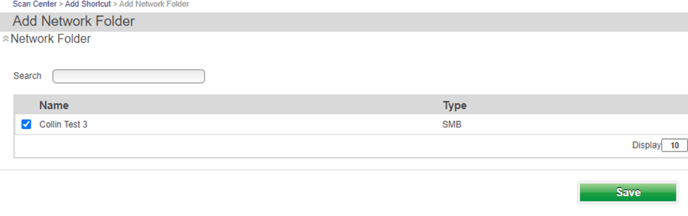
Check the box next to the folder you created in Step 5, then clickSave.
Check the box for your folder, then Save.
Step 9: Save the shortcut
You're back on the Create Shortcut page with everything filled in. ClickSaveone more time to commit the shortcut.
One last Save and your shortcut is live.
Step 10: Scan from the copier
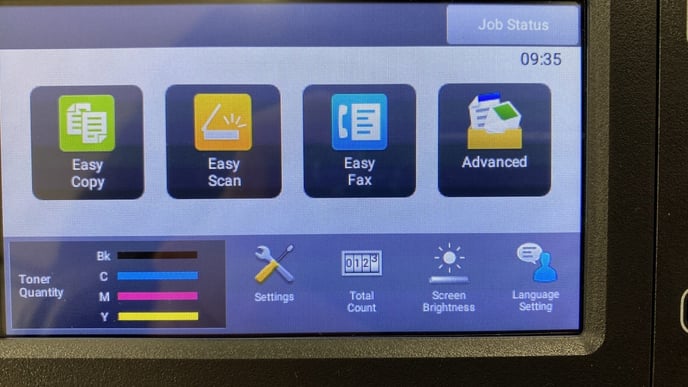
Walk over to the copier with the document you want to scan. Load your originalshead firstinto the document feeder. Then on the touchscreen, touch theAdvancedbutton.
Touch the Advanced button on the touchscreen to get to your shortcuts.
Step 11: Swipe and tap your shortcut
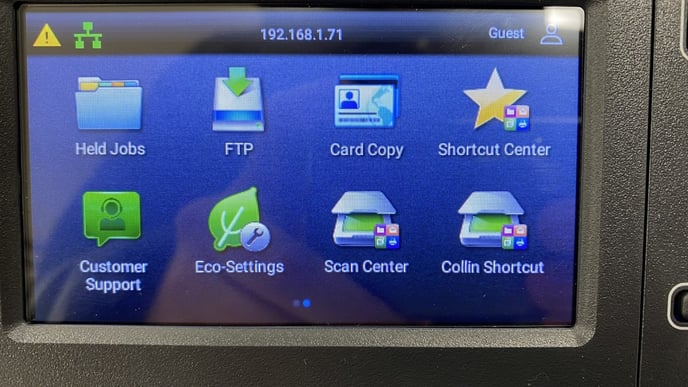
Swipe left to get to the second page of icons. You'll see the shortcut you just created. Touch it, and the scan starts immediately (because you checked "Start scan immediately" earlier).
Swipe left to find your new shortcut and tap it.
You're done
The scan will land in the shared folder within seconds. Anyone with access to that folder can open it, edit it, save it, or move it — exactly like a file someone dragged in from their PC. If you need to set up scan-to-folder for multiple people or departments, just repeat Steps 4 through 9, creating a new folder and shortcut for each one.
One last tip:if scans aren't showing up in the folder after a successful Save, double-check that the folder is genuinely shared (not just sitting on a network drive) and that the account credentials you entered havewritepermission, not just read.