Setting Up Network Scan to Email on Your Sharp Copier
A reference for configuring DNS, SMTP, and Authentication settings for Gmail
Setting up Scan to Email on a Sharp copier comes down to three blocks of settings: DNS, SMTP, and SMTP Authentication. Once you have the right values in each of these, the copier will be able to hand off your scans to Gmail and Gmail will deliver them. Here's what each section should look like.
DNS and SMTP Settings
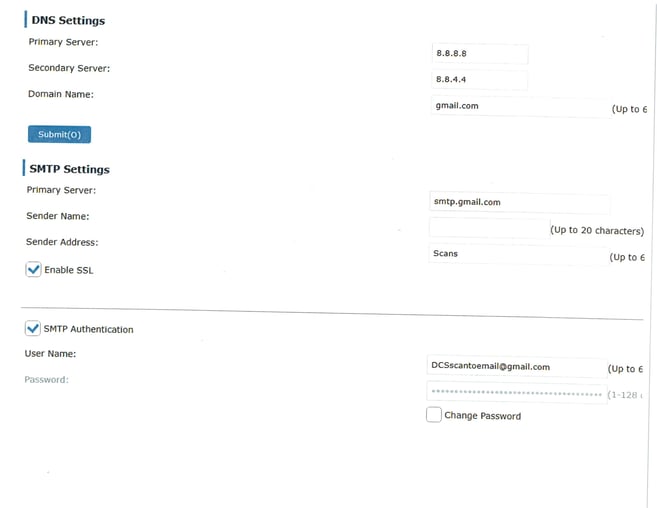
The first page is where you tell the copier how to find Gmail on the internet and what server to talk to when it gets there.
Primary DNS Server:8.8.8.8(Google's public DNS)
Secondary DNS Server:8.8.4.4
Domain Name:gmail.com
SMTP Primary Server:smtp.gmail.com
Sender Name: whatever you want to appear in the From field (something like "Scans" works well)
Enable SSL: check this box
For authentication, you'll fill in the Gmail address you want the copier to send from, and the 16-digit App Password you generated for it (not the regular Gmail password — Google requires App Passwords now, see ourScan-to-Email Fixpost for the full walkthrough on generating one).
DNS, SMTP, and Authentication settings — three blocks on a single page.
Services Settings > SMTP tab
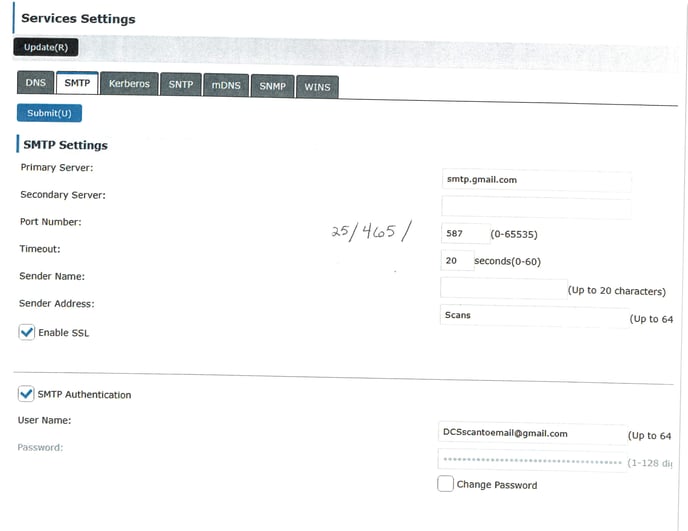
On some Sharp models the SMTP settings live underServices Settings, where DNS, SMTP, Kerberos, SNTP, mDNS, SNMP, and WINS each have their own tab. Click theSMTPtab.
Primary Server:smtp.gmail.com
Port Number:587works for most setups (this is for TLS). If 587 doesn't work, try465(for SSL). Port25is rarely needed.
Timeout:20seconds is fine
Enable SSL: check this
SMTP Authentication: check this, then enter the Gmail address as theUser Nameand the 16-digit App Password as thePassword
SMTP tab settings, with the three common port options noted (25, 465, 587).
One last thing: click Submit
It's an easy thing to miss, but the Sharp doesn't actually save any of these settings until you click theSubmitbutton at the top of each panel. Make a change, click Submit, watch for the confirmation, and then move to the next panel.
Quick troubleshooting:if scans aren't sending after you save everything, run theConnection Testfrom the same page. It'll tell you whether the problem is DNS, the SMTP server, or your authentication — much faster than guessing.
That's the whole setup. Once these three sections are saved with the right values, the copier can send Scan to Email jobs to anyone, anywhere — as long as the address is in the copier's address book, or someone types it in at the touchscreen.